> ## Documentation Index
> Fetch the complete documentation index at: https://docs.popsink.com/llms.txt
> Use this file to discover all available pages before exploring further.
# Install the data plane on Kubernetes
> Create a self-hosted deployment in the control plane, then install the data plane on your cluster with Helm.
This is the install guide for a self-hosted **Popsink data plane** — the runtime
that moves data from your sources to your targets. You create a deployment in
the Popsink control plane, it hands you a complete `values.yaml` and a
`helm install` command, and you run them against your cluster.
Every value the chart exposes, component by component, is in the
[Helm chart reference](/deployment/reference/helm-values). This page covers the path that
works; that one covers everything else.
## What gets installed
| Component | Purpose | Default |
| ------------ | ----------------------------------------------------------------------------- | ------------ |
| `data-plane` | Main API + UI. Talks to the control plane, launches connector workers as pods | **enabled** |
| `kodansu` | Stateless Kafka-compatible broker, object-store backed | **enabled** |
| `kora` | Confluent-compatible schema registry. **Needs its own PostgreSQL database** | **enabled** |
| `kotatsu` | Optional topic / schema browser, reads the broker's S3 objects | **disabled** |
| `postgresql` | Bitnami sub-chart, in-cluster Postgres for the data-plane database | **enabled** |
Connector workers are not part of the chart: the data plane creates them as pods
in its own namespace at runtime. Any sub-component can be disabled in favour of
your own Kafka, schema registry or PostgreSQL — see the
[chart reference](/deployment/reference/helm-values).
## Before you start
Run through [Kubernetes requirements](/deployment/install/requirements) first. In short:
Kubernetes `1.23+`, Helm `3.8.0+`, two `amd64` nodes at 4 vCPU / 16 GB, an
ingress controller, outbound HTTPS, and — from Popsink — a **registry token**
and an account on the control plane you will attach this deployment to.
Decide up front where the data plane will be reachable. You are asked for it in
step 2 and it cannot be left blank:
**URL, not TLD, not FQDN.** For a data plane served at
`popsink.example-company.com`, the *TLD* is `.com`, the *FQDN* is
`popsink.example-company.com`, and the *URL* is
`https://popsink.example-company.com`.
The chart value is `ingressUrl` and it takes the **URL**. The wizard's
**Fully qualified domain name** field accepts the host on its own and prefixes
`https://` for you; type a scheme yourself and it is kept as-is (an on-prem data
plane may legitimately sit behind plain HTTP).
***
## 1. Create the deployment
1. Open **Deployments** in the control-plane sidebar.
2. Click **New Deployment**.
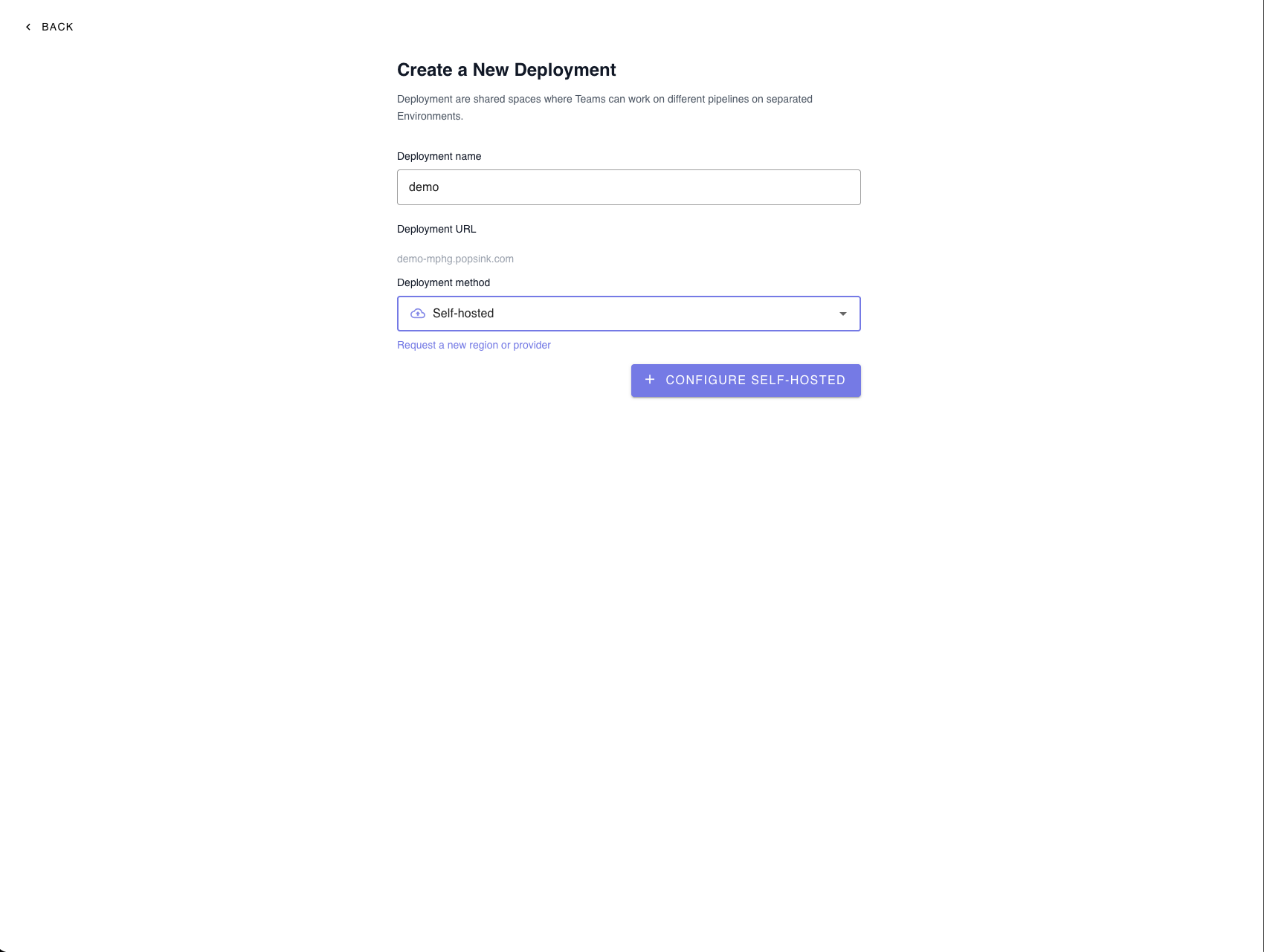
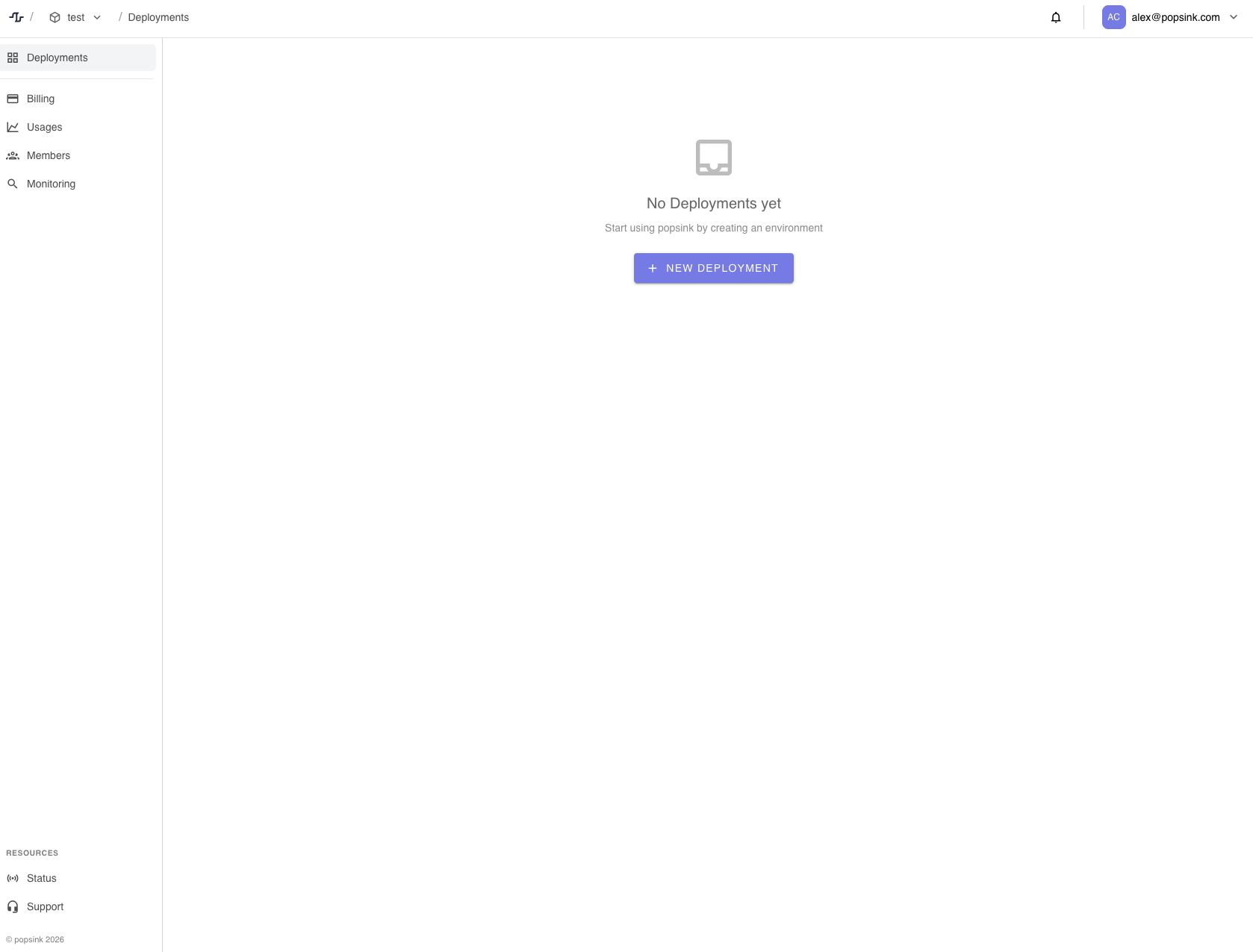 Then fill in:
* **Deployment name** — a recognizable name for this environment. It also
becomes the Helm release name (slugified), so keep it short and DNS-friendly.
* **Deployment URL** — generated from the name.
* **Deployment method** — **Self-hosted**.
Click **Configure Self-Hosted**.
> 💡 You can request a new region or provider if your preferred option is not listed.
Then fill in:
* **Deployment name** — a recognizable name for this environment. It also
becomes the Helm release name (slugified), so keep it short and DNS-friendly.
* **Deployment URL** — generated from the name.
* **Deployment method** — **Self-hosted**.
Click **Configure Self-Hosted**.
> 💡 You can request a new region or provider if your preferred option is not listed.
 One deployment per isolated network. Environments split a single reachable
network into scopes; they do not span VPCs or regions. If you are planning a
fleet, read [Deployments and environments](/deployment/architecture/topology) before creating
the first one.
***
## 2. Configure
Everything on this step exists to generate your `values.yaml`. Nothing here is
stored by Popsink — you can also skip the step and write the values yourself.
| Section | What it asks | What it generates |
| ----------------------- | --------------------------------------------------------- | --------------------------------------------------------------------- |
| **PostgreSQL Database** | Off = use the in-cluster Postgres. On = your own instance | `postgresql.*`, or `postgresql.enabled: false` + `externalDatabase.*` |
| **Retention** | **S3 Compat** (recommended) or **PostgreSQL Database** | `kodansu.storage.engine` + `kodansu.storage.aws.*`, `kotatsu.*` |
| **TLD** | Fully qualified domain name, e.g. `popsink.example.com` | `ingressUrl: https://popsink.example.com` |
The **PostgreSQL Database** toggle means *"I bring my own"*. Left off, the chart
installs the bundled Postgres sub-chart and points both the data plane and the
schema registry (Kora) at it.
Pick **S3 Compat** retention unless you have a reason not to. PostgreSQL
retention is simpler to operate but does not scale the same way, and it rules
out the stream browser (Kotatsu) — there is no bucket to browse, so the wizard
sets `kotatsu.enabled: false` for you.
Click **Create Chart**.
***
## 3. Save the generated `values.yaml`
The **Chart** step shows your `values.yaml` **first**, then the install command
that reads it. That order matters: Helm resolves values at install time, so a
`helm install` without `-f values.yaml` installs pure chart defaults and ignores
everything the wizard generated.
The generated file is complete — it covers every value the chart marks
`required`, plus three secrets minted **in your browser** and never sent to
Popsink:
```yaml values.yaml (generated — abridged) theme={null}
controlPlaneUrl: https://control-plane-api.popsink.com/api
controlPlaneFrontendUrl: https://control-plane.popsink.com
ingressUrl: https://popsink.example-company.com
deploymentId:
deploymentJwtToken:
token:
adminCredentials:
username: admin
password:
jwt:
secret:
connectorConfigEncryptionKey:
key:
imagePullSecret:
create: true
registry: europe-west1-docker.pkg.dev/popsink-common-438615/onprem
token: "" # ← you paste the token Popsink issued you
kodansu:
storage:
engine: s3://my-popsink-bucket/
aws:
region: eu-west-1
accessKeyId:
secretAccessKey:
kora:
database: # the schema registry shares the data-plane database
host: my-deployment-postgresql
port: 5432
user: popsink
database: popsink
password:
postgresql:
auth:
password:
kotatsu:
s3:
bucket: my-popsink-bucket
cluster: tansu
region: eu-west-1
forcePathStyle: false
accessKey:
secretKey:
```
`adminCredentials.password`, `jwt.secret` and `connectorConfigEncryptionKey.key`
are generated in the browser and stored nowhere else. **Save this file in your
secret manager before leaving the page.**
`connectorConfigEncryptionKey.key` must never be rotated: every stored connector
configuration is encrypted with it and becomes unreadable if it changes. Each
deployment gets its own — never share one across deployments.
`deploymentJwtToken` is an **object**, not a string — `token:` nested underneath.
A flat `deploymentJwtToken: ` fails to render.
### Fill in what the wizard cannot
The wizard flags any value it left empty under **"Fill these in before
installing"**. Two of them always need your attention:
Paste the registry token Popsink issued you (the GAR service-account JSON, raw
or base64-encoded). The control plane holds no registry credential, so it
cannot fill this for you.
```yaml theme={null}
imagePullSecret:
create: true
registry: europe-west1-docker.pkg.dev/popsink-common-438615/onprem
token:
```
Add this by hand — `imagePullSecret.create: true` is **not sufficient today**.
The chart creates the secret as `-regcred` but does not attach
it to any pod, so every image fails with `ImagePullBackOff`. Reference it
explicitly:
```yaml theme={null}
global:
imagePullSecrets:
- my-deployment-regcred # -regcred
```
Or skip `imagePullSecret` entirely and create the secret yourself:
```bash theme={null}
kubectl create secret docker-registry popsink-registry \
--docker-server=europe-west1-docker.pkg.dev \
--docker-username=_json_key \
--docker-password="$(cat key.json)" \
-n popsink
```
```yaml theme={null}
global:
imagePullSecrets:
- popsink-registry
```
This extra step is a known chart defect and will go away — until then,
both values are required.
These two are **not** guarded by the chart: left empty they render, install,
and the data plane then crash-loops on an empty `DB_USER`. The database must
exist before the install — the data plane runs its own migrations on startup.
Sensitive values can come from an existing Kubernetes Secret rather than a
literal — set the matching `existingSecret` field. It works with Vault, Sealed
Secrets or the External Secrets Operator, and is the recommended shape in
production. See
[Managing secrets](/deployment/reference/helm-values#managing-secrets-with-existingsecret).
***
## 4. Configure ingress
The chart **can** render the `Ingress` for you, and it can also stay out of the
way. Pick one — but either way, `ingressUrl` must match the public URL your
users actually reach, or the control-plane login redirect loops.
Leave `ingress.enabled: false` (the default) and point your own resource at
the data-plane service — `-data-plane`, port `80`:
```yaml theme={null}
apiVersion: networking.k8s.io/v1
kind: Ingress
metadata:
name: popsink
namespace: popsink
annotations:
cert-manager.io/cluster-issuer: letsencrypt-prod
spec:
ingressClassName: nginx
tls:
- hosts: [popsink.example-company.com]
secretName: popsink-tls
rules:
- host: popsink.example-company.com
http:
paths:
- path: /
pathType: Prefix
backend:
service:
name: -data-plane
port: { number: 80 }
```
This is the better option when ingress in your organisation needs specific
annotations — WAF, allow-lists, a company cert issuer.
```yaml theme={null}
ingressUrl: https://popsink.example-company.com
ingress:
enabled: true
hostname: popsink.example-company.com
ingressClassName: nginx
tls: true
annotations:
cert-manager.io/cluster-issuer: letsencrypt-prod
```
`ingress.extraHosts`, `ingress.extraTls`, `ingress.path` and
`ingress.existingSecret` are available too — see
[Ingress values](/deployment/reference/helm-values#ingress).
***
## 5. Install
Run the command **the wizard shows you**, from the directory holding your
`values.yaml`:
```bash theme={null}
kubectl create namespace popsink
helm install oci://ghcr.io/popsink/charts/data-plane \
--version \
-n popsink \
-f values.yaml
```
Do not copy a version from a document — including this one. The chart version is
served by the control plane and tracks the published chart; a literal pinned in
a guide rots.
Watch the rollout:
```bash theme={null}
kubectl -n popsink get pods -w
```
***
## 6. Await connection
Once the pods are `Ready`, the control plane leaves **Awaiting connections…** and
the deployment flips to **Live**, usually within a minute. That flip is driven by
the data plane's first
[heartbeat](/deployment/architecture/control-data-plane#the-heartbeat) — the control plane
never probes your cluster.
One deployment per isolated network. Environments split a single reachable
network into scopes; they do not span VPCs or regions. If you are planning a
fleet, read [Deployments and environments](/deployment/architecture/topology) before creating
the first one.
***
## 2. Configure
Everything on this step exists to generate your `values.yaml`. Nothing here is
stored by Popsink — you can also skip the step and write the values yourself.
| Section | What it asks | What it generates |
| ----------------------- | --------------------------------------------------------- | --------------------------------------------------------------------- |
| **PostgreSQL Database** | Off = use the in-cluster Postgres. On = your own instance | `postgresql.*`, or `postgresql.enabled: false` + `externalDatabase.*` |
| **Retention** | **S3 Compat** (recommended) or **PostgreSQL Database** | `kodansu.storage.engine` + `kodansu.storage.aws.*`, `kotatsu.*` |
| **TLD** | Fully qualified domain name, e.g. `popsink.example.com` | `ingressUrl: https://popsink.example.com` |
The **PostgreSQL Database** toggle means *"I bring my own"*. Left off, the chart
installs the bundled Postgres sub-chart and points both the data plane and the
schema registry (Kora) at it.
Pick **S3 Compat** retention unless you have a reason not to. PostgreSQL
retention is simpler to operate but does not scale the same way, and it rules
out the stream browser (Kotatsu) — there is no bucket to browse, so the wizard
sets `kotatsu.enabled: false` for you.
Click **Create Chart**.
***
## 3. Save the generated `values.yaml`
The **Chart** step shows your `values.yaml` **first**, then the install command
that reads it. That order matters: Helm resolves values at install time, so a
`helm install` without `-f values.yaml` installs pure chart defaults and ignores
everything the wizard generated.
The generated file is complete — it covers every value the chart marks
`required`, plus three secrets minted **in your browser** and never sent to
Popsink:
```yaml values.yaml (generated — abridged) theme={null}
controlPlaneUrl: https://control-plane-api.popsink.com/api
controlPlaneFrontendUrl: https://control-plane.popsink.com
ingressUrl: https://popsink.example-company.com
deploymentId:
deploymentJwtToken:
token:
adminCredentials:
username: admin
password:
jwt:
secret:
connectorConfigEncryptionKey:
key:
imagePullSecret:
create: true
registry: europe-west1-docker.pkg.dev/popsink-common-438615/onprem
token: "" # ← you paste the token Popsink issued you
kodansu:
storage:
engine: s3://my-popsink-bucket/
aws:
region: eu-west-1
accessKeyId:
secretAccessKey:
kora:
database: # the schema registry shares the data-plane database
host: my-deployment-postgresql
port: 5432
user: popsink
database: popsink
password:
postgresql:
auth:
password:
kotatsu:
s3:
bucket: my-popsink-bucket
cluster: tansu
region: eu-west-1
forcePathStyle: false
accessKey:
secretKey:
```
`adminCredentials.password`, `jwt.secret` and `connectorConfigEncryptionKey.key`
are generated in the browser and stored nowhere else. **Save this file in your
secret manager before leaving the page.**
`connectorConfigEncryptionKey.key` must never be rotated: every stored connector
configuration is encrypted with it and becomes unreadable if it changes. Each
deployment gets its own — never share one across deployments.
`deploymentJwtToken` is an **object**, not a string — `token:` nested underneath.
A flat `deploymentJwtToken: ` fails to render.
### Fill in what the wizard cannot
The wizard flags any value it left empty under **"Fill these in before
installing"**. Two of them always need your attention:
Paste the registry token Popsink issued you (the GAR service-account JSON, raw
or base64-encoded). The control plane holds no registry credential, so it
cannot fill this for you.
```yaml theme={null}
imagePullSecret:
create: true
registry: europe-west1-docker.pkg.dev/popsink-common-438615/onprem
token:
```
Add this by hand — `imagePullSecret.create: true` is **not sufficient today**.
The chart creates the secret as `-regcred` but does not attach
it to any pod, so every image fails with `ImagePullBackOff`. Reference it
explicitly:
```yaml theme={null}
global:
imagePullSecrets:
- my-deployment-regcred # -regcred
```
Or skip `imagePullSecret` entirely and create the secret yourself:
```bash theme={null}
kubectl create secret docker-registry popsink-registry \
--docker-server=europe-west1-docker.pkg.dev \
--docker-username=_json_key \
--docker-password="$(cat key.json)" \
-n popsink
```
```yaml theme={null}
global:
imagePullSecrets:
- popsink-registry
```
This extra step is a known chart defect and will go away — until then,
both values are required.
These two are **not** guarded by the chart: left empty they render, install,
and the data plane then crash-loops on an empty `DB_USER`. The database must
exist before the install — the data plane runs its own migrations on startup.
Sensitive values can come from an existing Kubernetes Secret rather than a
literal — set the matching `existingSecret` field. It works with Vault, Sealed
Secrets or the External Secrets Operator, and is the recommended shape in
production. See
[Managing secrets](/deployment/reference/helm-values#managing-secrets-with-existingsecret).
***
## 4. Configure ingress
The chart **can** render the `Ingress` for you, and it can also stay out of the
way. Pick one — but either way, `ingressUrl` must match the public URL your
users actually reach, or the control-plane login redirect loops.
Leave `ingress.enabled: false` (the default) and point your own resource at
the data-plane service — `-data-plane`, port `80`:
```yaml theme={null}
apiVersion: networking.k8s.io/v1
kind: Ingress
metadata:
name: popsink
namespace: popsink
annotations:
cert-manager.io/cluster-issuer: letsencrypt-prod
spec:
ingressClassName: nginx
tls:
- hosts: [popsink.example-company.com]
secretName: popsink-tls
rules:
- host: popsink.example-company.com
http:
paths:
- path: /
pathType: Prefix
backend:
service:
name: -data-plane
port: { number: 80 }
```
This is the better option when ingress in your organisation needs specific
annotations — WAF, allow-lists, a company cert issuer.
```yaml theme={null}
ingressUrl: https://popsink.example-company.com
ingress:
enabled: true
hostname: popsink.example-company.com
ingressClassName: nginx
tls: true
annotations:
cert-manager.io/cluster-issuer: letsencrypt-prod
```
`ingress.extraHosts`, `ingress.extraTls`, `ingress.path` and
`ingress.existingSecret` are available too — see
[Ingress values](/deployment/reference/helm-values#ingress).
***
## 5. Install
Run the command **the wizard shows you**, from the directory holding your
`values.yaml`:
```bash theme={null}
kubectl create namespace popsink
helm install oci://ghcr.io/popsink/charts/data-plane \
--version \
-n popsink \
-f values.yaml
```
Do not copy a version from a document — including this one. The chart version is
served by the control plane and tracks the published chart; a literal pinned in
a guide rots.
Watch the rollout:
```bash theme={null}
kubectl -n popsink get pods -w
```
***
## 6. Await connection
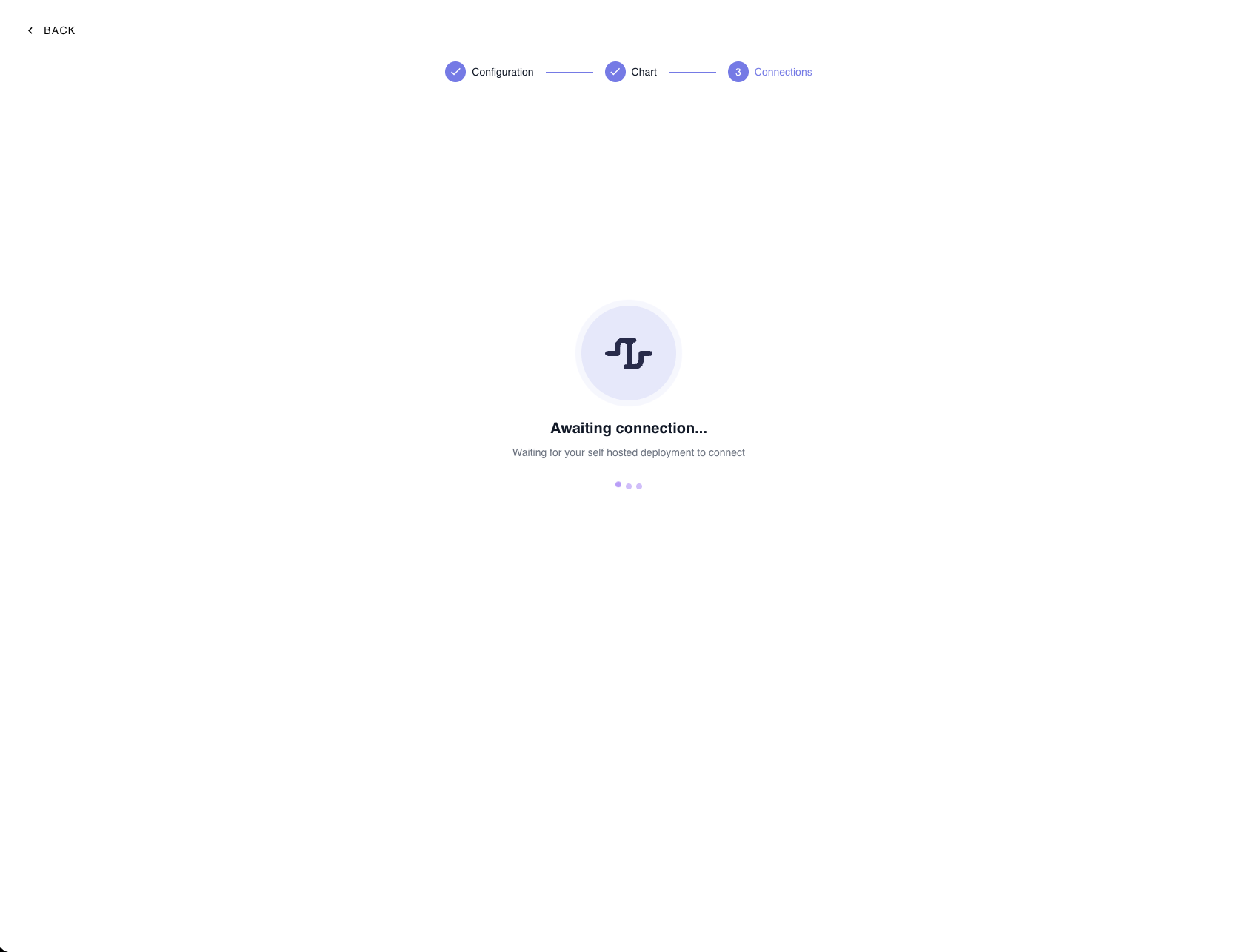
Once the pods are `Ready`, the control plane leaves **Awaiting connections…** and
the deployment flips to **Live**, usually within a minute. That flip is driven by
the data plane's first
[heartbeat](/deployment/architecture/control-data-plane#the-heartbeat) — the control plane
never probes your cluster.
 Then open your `ingressUrl` and log in with `adminCredentials`.
The five things to check, and the logs to read next.
***
## Production checklist
* Pin the chart version (`--version`) and the application image
(`image.tag`) — never deploy `latest`.
* Upgrade one deployment at a time, starting with staging. See
[Upgrading a fleet](/deployment/architecture/topology#upgrading-a-fleet).
* Use **external** PostgreSQL (`postgresql.enabled: false` +
`externalDatabase.*`) backed by managed snapshots, not the in-cluster
Bitnami sub-chart.
* Use **external** S3 with versioning and a lifecycle policy for the broker.
* Set explicit `resources.requests/limits` on every component — the defaults
target small-to-medium clusters.
* Keep `replicaCount ≥ 2` on `data-plane` (default) and
`kodansu.replicaCount: 3` (default).
* Keep `pdb.create: true` (default) so at least one pod survives a node drain.
* Provide values through `existingSecret` fields and a secrets controller
rather than literals in `values.yaml`.
* Back up the four secrets — admin credentials, JWT secret, Fernet key,
database password — in your secret manager.
* Keep `allowDesignLogin: false` and `pipelineMode: false` — dev-only
switches.
* TLS-only ingress, with source ranges restricted if the data plane is
internet-exposed.
## After the install
`helm upgrade`, the broker-image caveat, and the order to roll a fleet in.
Uninstalling is documented there too.
Reaching a source database that is not on the cluster's network.
## Installing without the wizard
The wizard only generates values — the chart is the same either way. Installing
by hand means doing three things yourself:
1. Get a `deploymentId` and `deploymentJwtToken` from the control plane
(**Deployments → New deployment → Self-hosted**). They are the deployment's
identity and cannot be minted locally.
2. Generate the four secrets yourself — see
[Secrets you must generate](/deployment/reference/helm-values#secrets-you-must-generate).
3. Write the `values.yaml` from the
[Helm chart reference](/deployment/reference/helm-values), which documents every component
the wizard configures for you, plus the ones it does not: BYO Kafka, an
external schema registry, Oracle as the Kora backend, HPA/VPA, network
policies.
## Further reading
Every value the chart exposes, component by component.
Symptom-to-cause table for the install and the first boot.
How to map deployments onto your regions, networks and staging tiers.
What metadata crosses between the two, and the network rules it implies.
Then open your `ingressUrl` and log in with `adminCredentials`.
The five things to check, and the logs to read next.
***
## Production checklist
* Pin the chart version (`--version`) and the application image
(`image.tag`) — never deploy `latest`.
* Upgrade one deployment at a time, starting with staging. See
[Upgrading a fleet](/deployment/architecture/topology#upgrading-a-fleet).
* Use **external** PostgreSQL (`postgresql.enabled: false` +
`externalDatabase.*`) backed by managed snapshots, not the in-cluster
Bitnami sub-chart.
* Use **external** S3 with versioning and a lifecycle policy for the broker.
* Set explicit `resources.requests/limits` on every component — the defaults
target small-to-medium clusters.
* Keep `replicaCount ≥ 2` on `data-plane` (default) and
`kodansu.replicaCount: 3` (default).
* Keep `pdb.create: true` (default) so at least one pod survives a node drain.
* Provide values through `existingSecret` fields and a secrets controller
rather than literals in `values.yaml`.
* Back up the four secrets — admin credentials, JWT secret, Fernet key,
database password — in your secret manager.
* Keep `allowDesignLogin: false` and `pipelineMode: false` — dev-only
switches.
* TLS-only ingress, with source ranges restricted if the data plane is
internet-exposed.
## After the install
`helm upgrade`, the broker-image caveat, and the order to roll a fleet in.
Uninstalling is documented there too.
Reaching a source database that is not on the cluster's network.
## Installing without the wizard
The wizard only generates values — the chart is the same either way. Installing
by hand means doing three things yourself:
1. Get a `deploymentId` and `deploymentJwtToken` from the control plane
(**Deployments → New deployment → Self-hosted**). They are the deployment's
identity and cannot be minted locally.
2. Generate the four secrets yourself — see
[Secrets you must generate](/deployment/reference/helm-values#secrets-you-must-generate).
3. Write the `values.yaml` from the
[Helm chart reference](/deployment/reference/helm-values), which documents every component
the wizard configures for you, plus the ones it does not: BYO Kafka, an
external schema registry, Oracle as the Kora backend, HPA/VPA, network
policies.
## Further reading
Every value the chart exposes, component by component.
Symptom-to-cause table for the install and the first boot.
How to map deployments onto your regions, networks and staging tiers.
What metadata crosses between the two, and the network rules it implies.